List Product
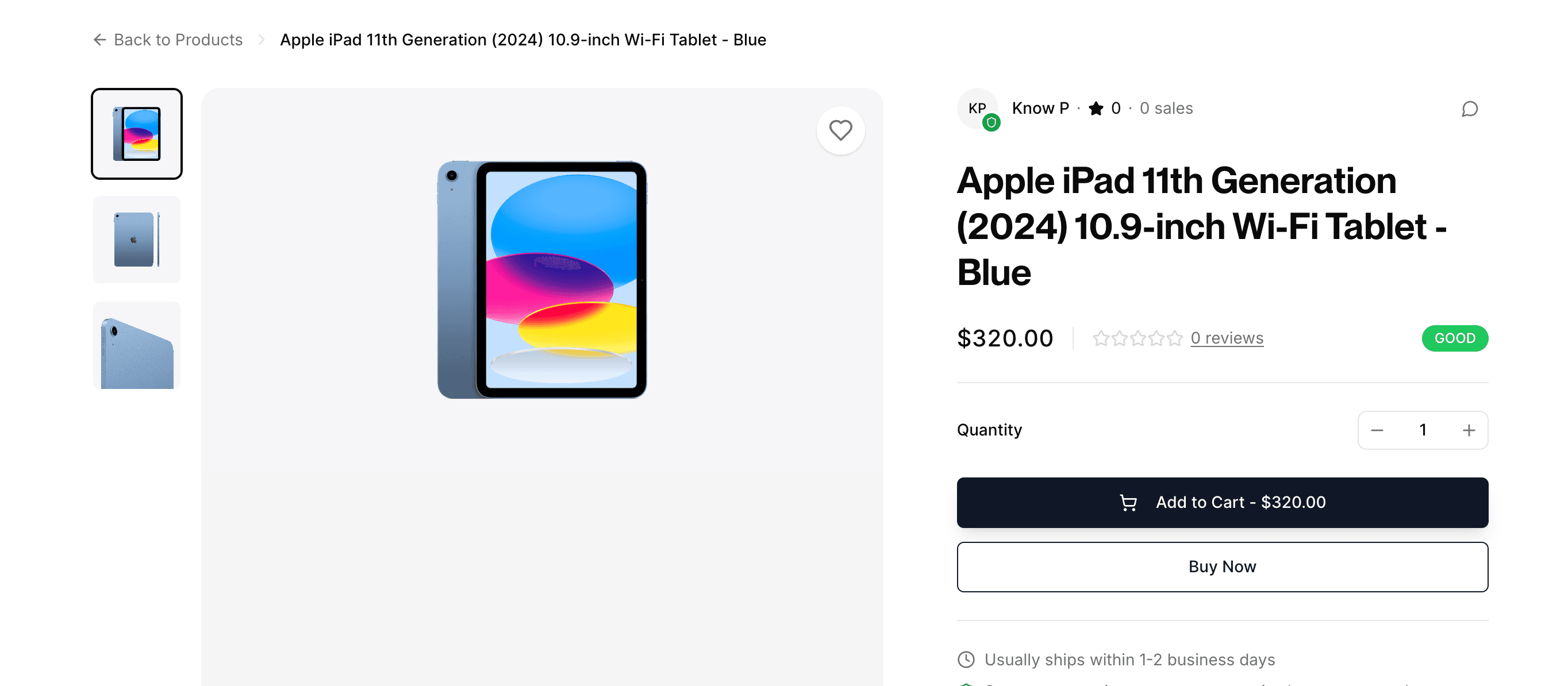
Listing a product is simple on p2.market. If you have experience with other ecommerce apps, the flow is similar but much simpler and minimal.
Step 1: Title and Images
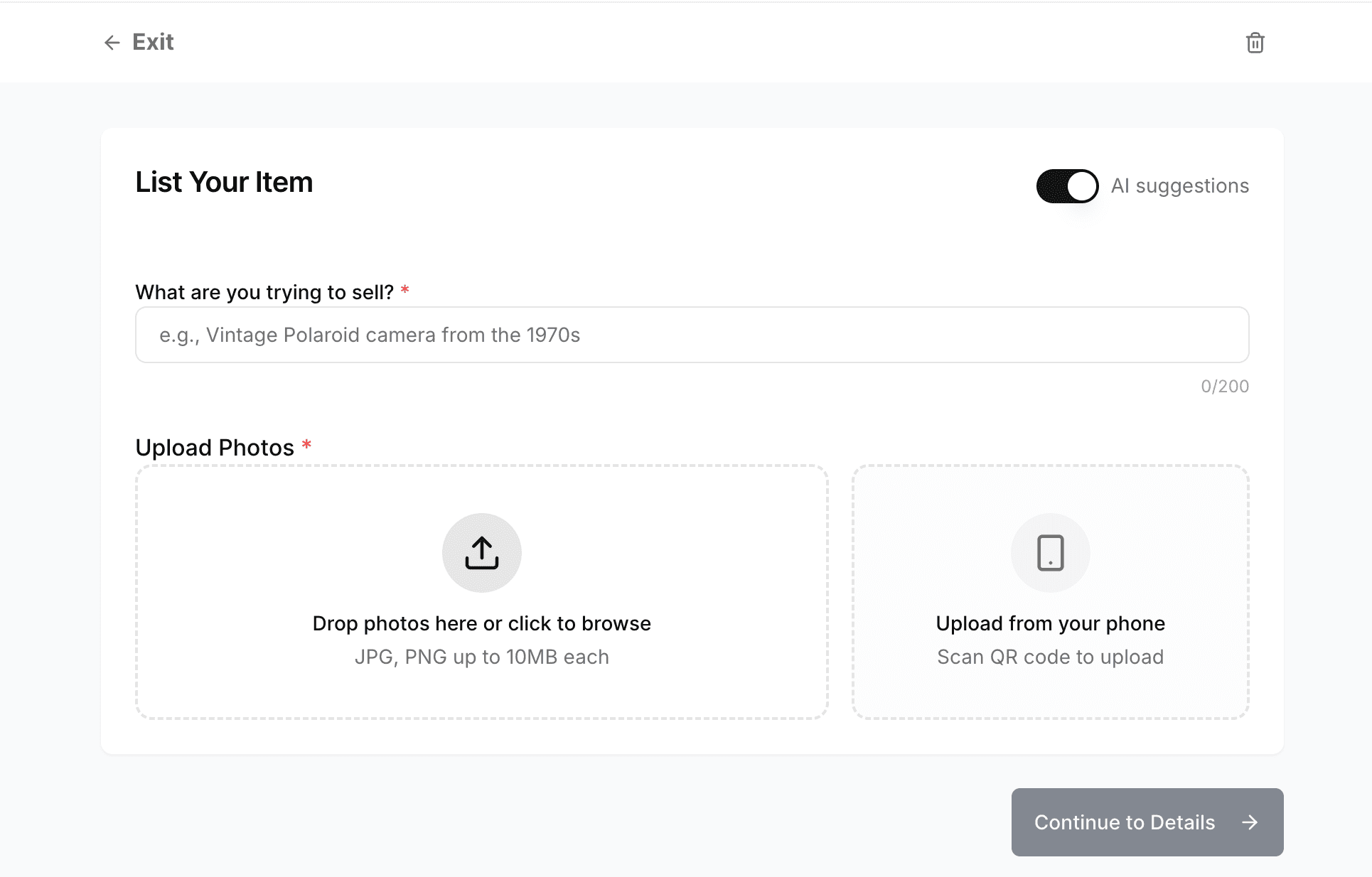
- Fill the first input with the name of the product you want to sell. Make it very clear to the buyer what you are selling.
-
We offer an AI Suggestions feature, visible in the top-right corner and enabled by default. When you upload an image, the AI analyzes it to automatically generate suggested descriptions, pricing, and other relevant fields to speed up your listing process.
-
Next, upload high-quality images of your product. You can drag and drop files directly from your computer or select them manually. If your images are on your phone, choose the Upload from mobile option and scan the QR code to transfer them instantly.
Please note that each image must be under 10 MB—larger files will fail to upload.
Step 2: Product Description and Specifications
-
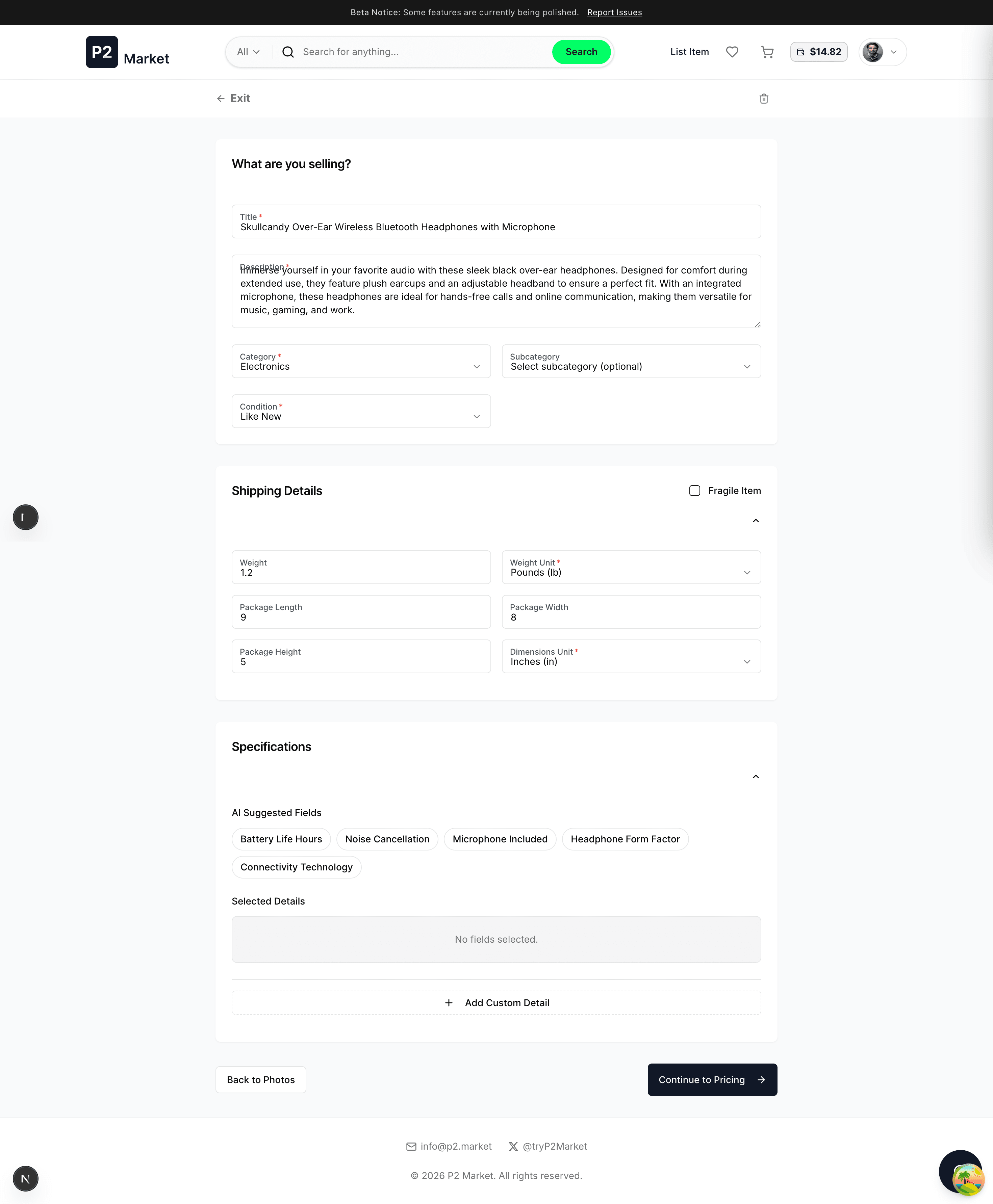
Enter your product description. If the AI Suggestions feature is enabled, many fields will be auto-filled for you. We strongly recommend reviewing these suggestions carefully to ensure all details accurately match your product. Incorrect or misleading information may lead to buyer disputes.
-
In the Shipping Details section, carefully enter your package dimensions and weight.
For weight, you can choose from four units: Pounds, Kilograms, Ounces, or Grams. For length, height, and width, select from Inches, Centimeters, Meters, or Feet.
Make sure you choose the unit system that you—or your customer—prefer, and input all measurements accurately.
If your package requires special care during shipping, mark it as a Fragile Item. This helps reduce the risk of damage in transit.
-
In the Specifications section, add all features and technical details related to your product. Click the Add Custom Detail button to include any fields that are specific to your item.
If you have opted in to AI Suggestions, the system will recommend relevant specifications that you can use or edit.
For example, when listing a laptop, buyers typically look for details such as RAM, storage capacity, storage type, screen size, etc.
Step 3: Price, Stock Quantity, Collateral, and Shipping Services
-
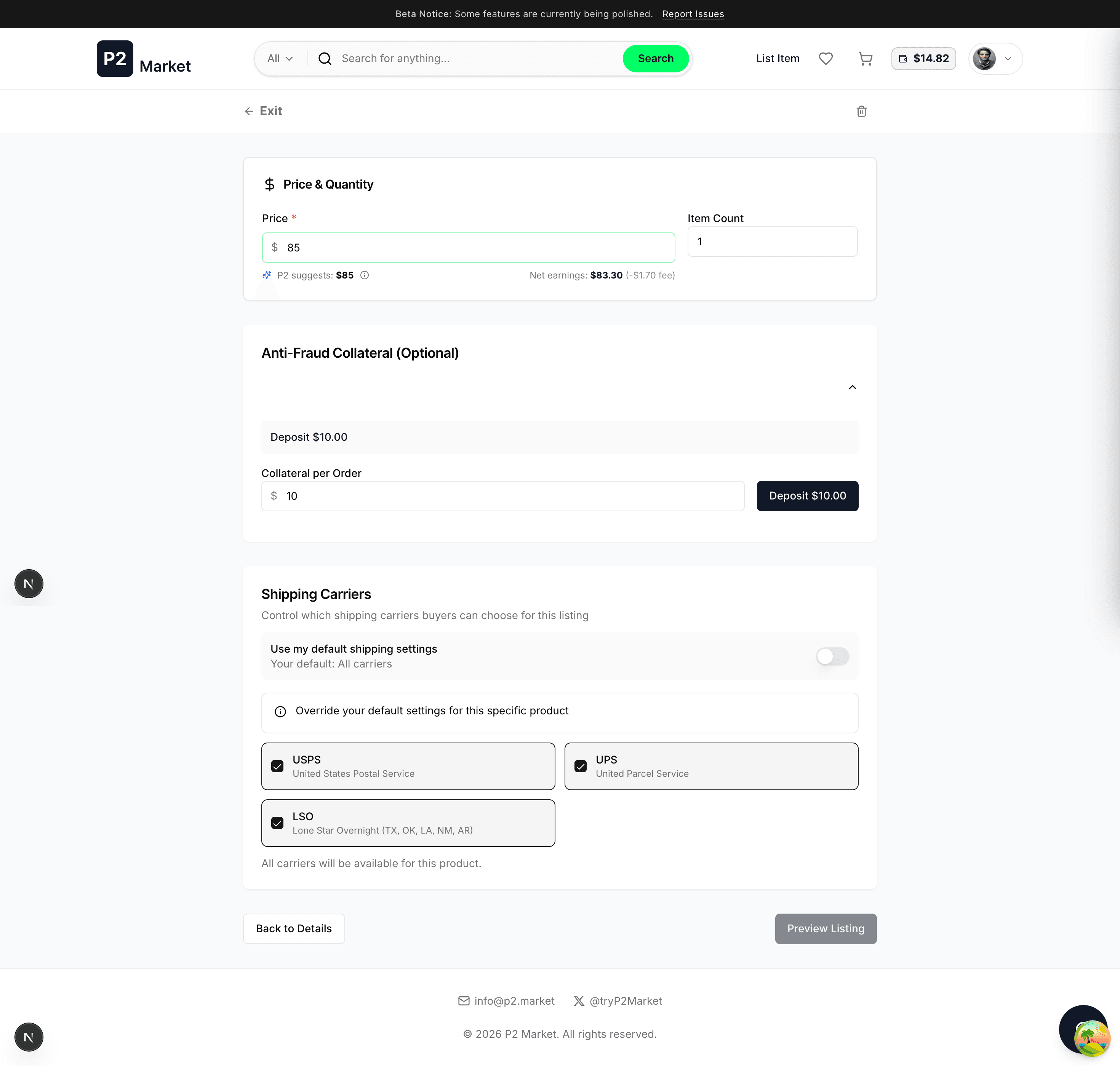
First, enter the price of your product. AI will try to suggest this based on common market prices but this can be inaccurate.
-
On the right side of the price input, you can enter the Item Count — this is simply the stock quantity of your product.
-
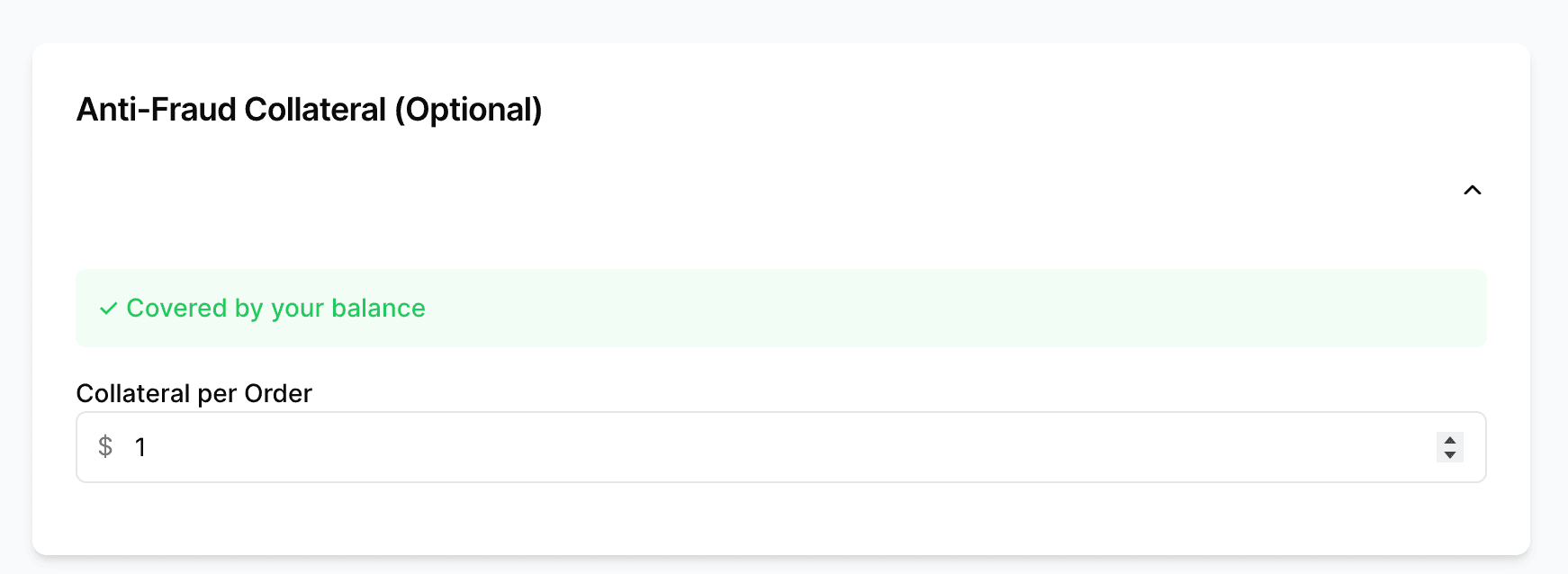
Next is the optional Anti-Fraud Collateral field—a feature introduced by the P2.Market platform.
As a seller, you can deposit collateral for each product. This acts as a security deposit that builds buyer confidence: if the seller fails to meet obligations, the buyer will receive this amount along with their order refund. If the transaction is completed successfully, the full collateral is returned to the seller.
The total required collateral is calculated as:
Required Collateral = Item Count × Collateral Per Order
For example, if you are selling 10 units and set a collateral amount of $10 per item, the total collateral required will be $100 USDC (10 × $10).
We recommend the collateral per product to be at least 50% of the product price for high buyer confidence.
After you deposit collateral you will see the text "Covered by your balance", meaning either you already had free collateral in your account or your deposit was successful.
-
In the final step of the listing process, you can select your preferred shipping service. Currently, we support USPS, UPS, and LSO.
Buyers will see the options you enable and can choose the one that best suits their needs at checkout. We recommend selecting shipping providers that are convenient and reliable for both you and your customers.
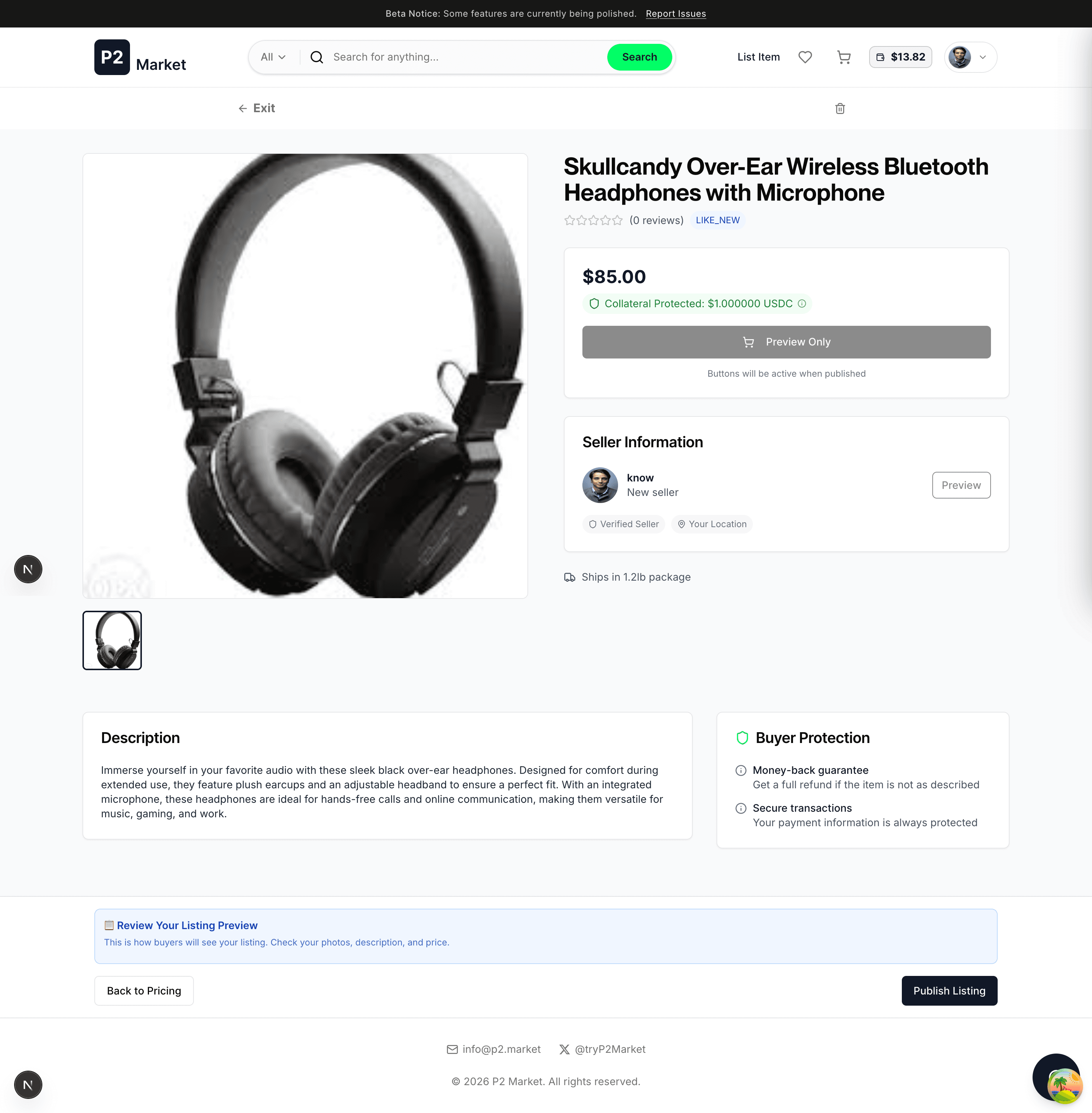
Step 4: Preview
This is the last step before your product goes live on the marketplace. Please make sure you carefully review all the product details you provided. If anything is wrong, you can easily move back to a specific section using the back buttons in the bottom left.
Step 5: Product Goes Live
Once you confirm after reviewing your details, our systems will perform content moderation and list the product on the blockchain (Base) and make it live in the marketplace. You will see this screen when your product is ready for buyers to purchase.
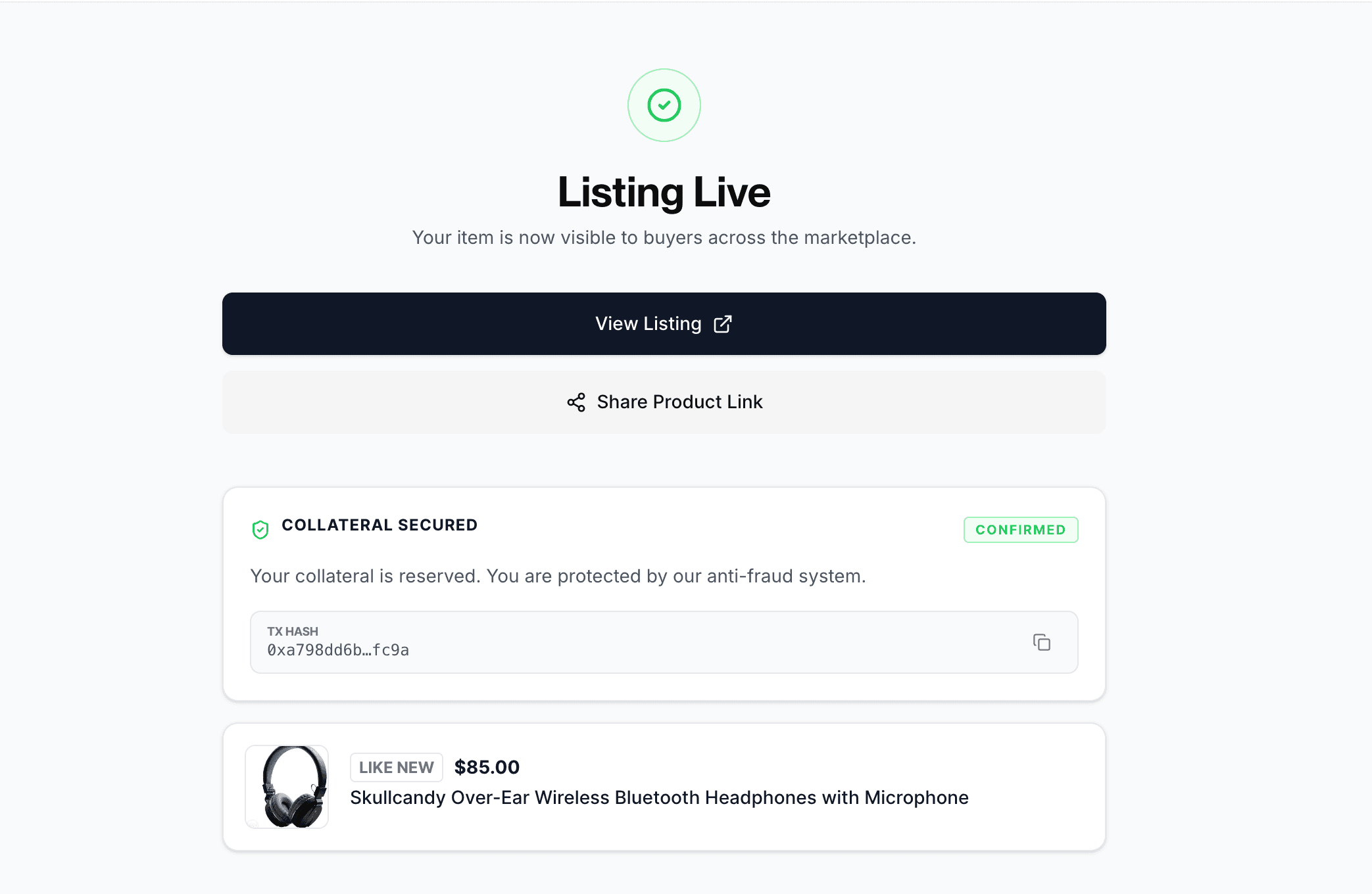
Listing flow ends here. You can always edit or unlist the product after listing.