Fulfill Order
Once you get an order from a buyer, follow these steps to fulfill and ship it to the buyer's address.
Step 1: Go to My Account
Go to the account page by clicking on your profile, then the My Account button on the p2.market navigation bar.

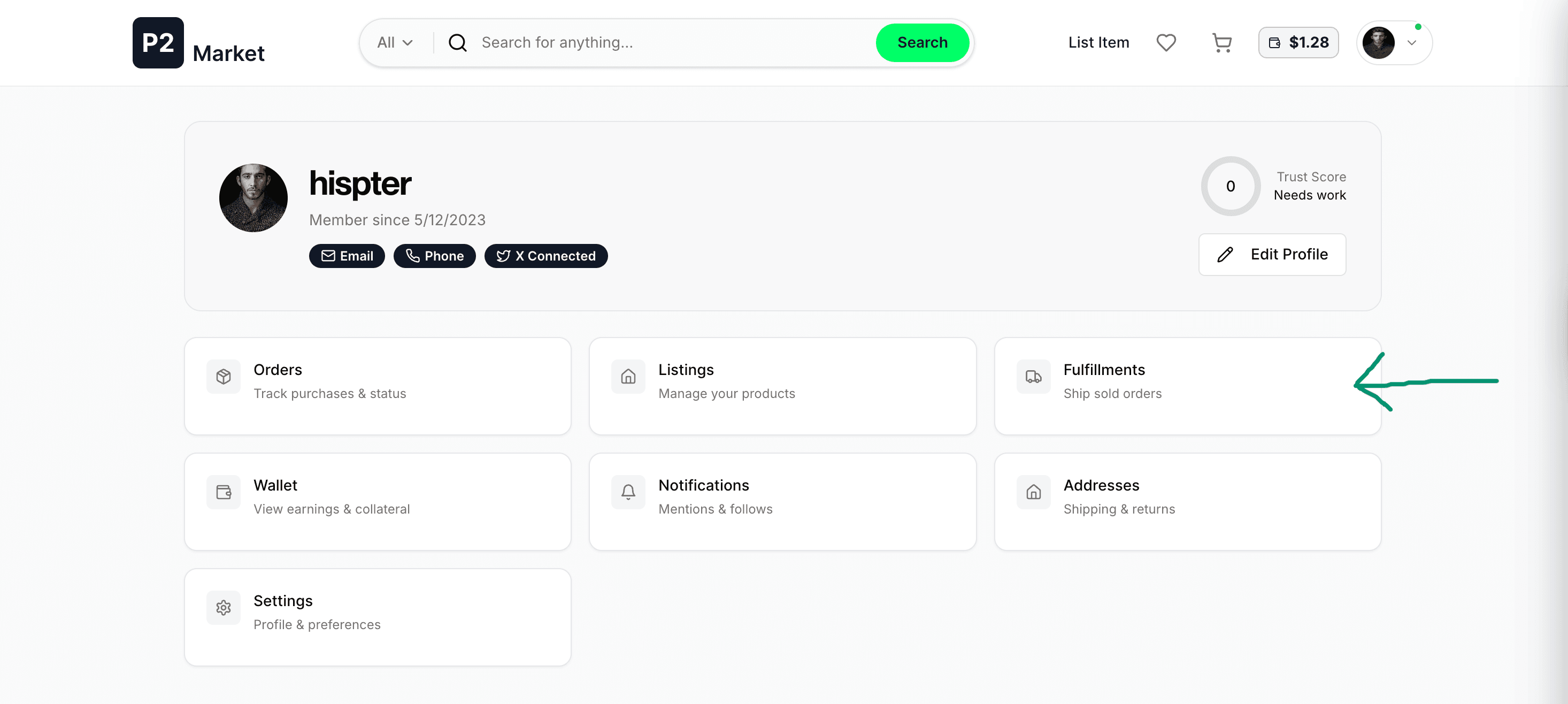
Step 2: Open Fulfillments Tab
Click on the Fulfillments tab to see all the orders you have.
Step 3: Find Your Order
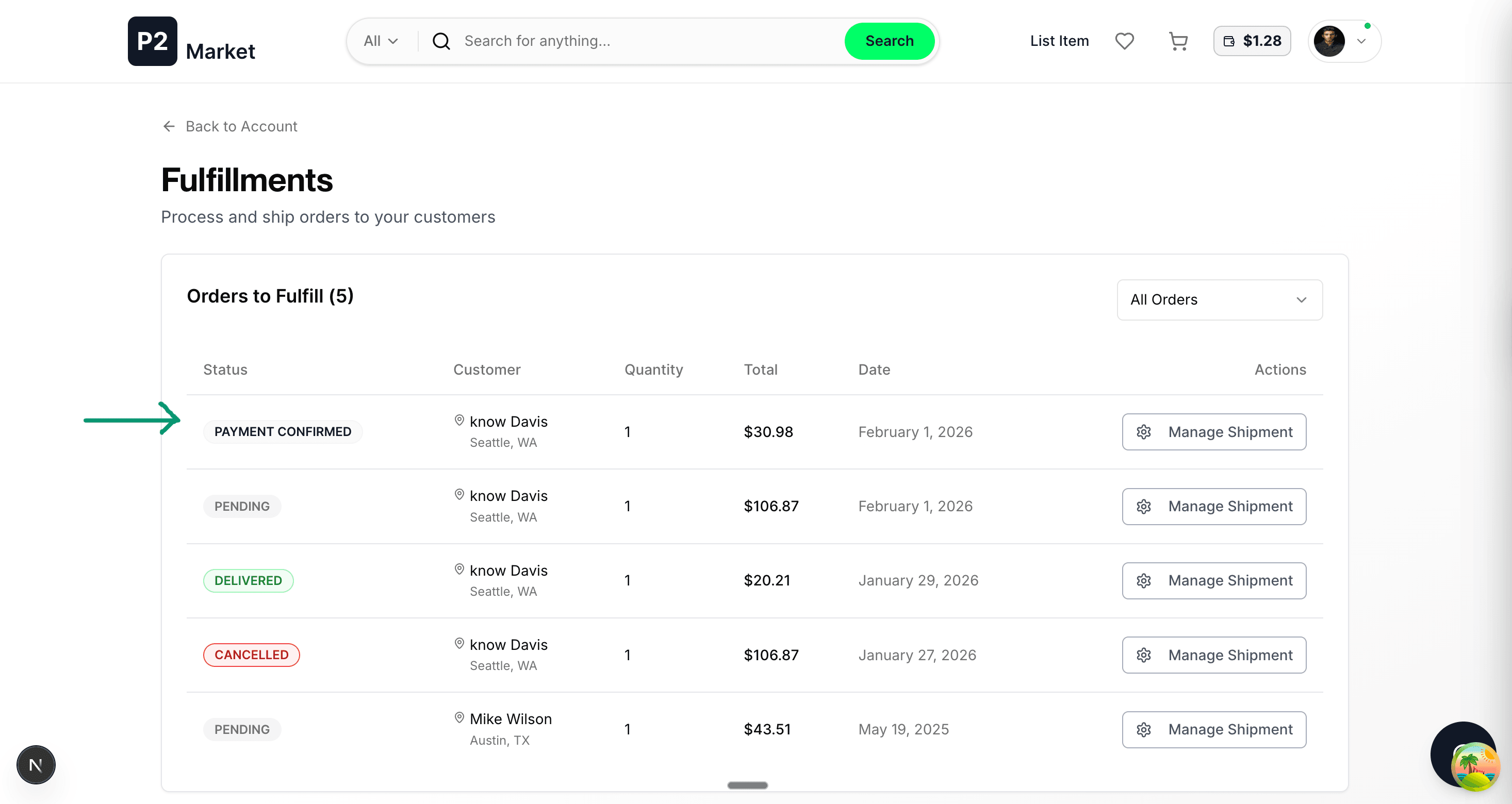
On the fulfillments page you can see the list of items with different statuses. Look for one with PAYMENT_CONFIRMED — this is an order where the buyer has already deposited their funds to escrow. Click the Manage Shipment button to view the details and proceed.
Step 4: Review Order Details
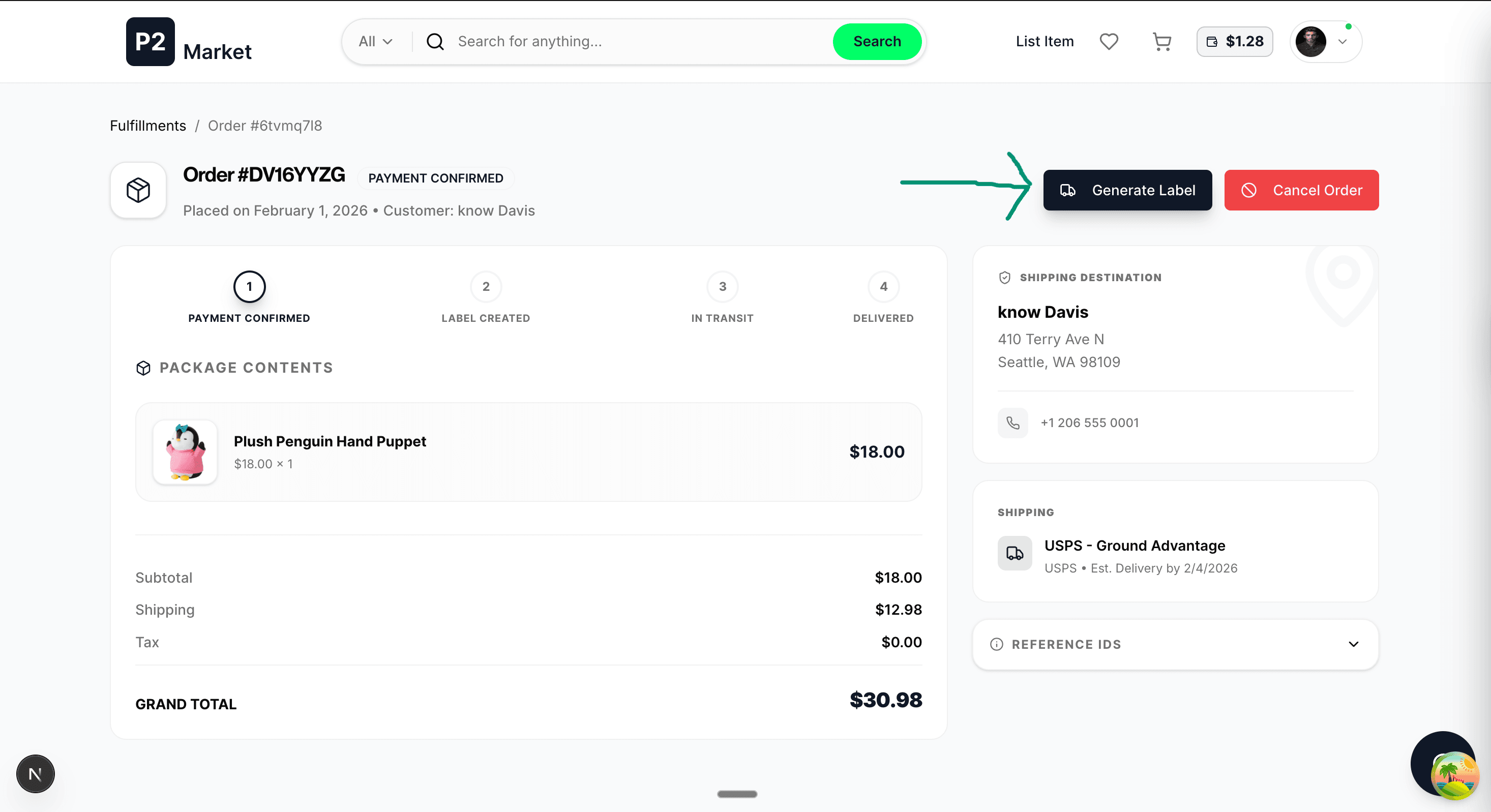
When you click Manage Shipment, you'll see the full order breakdown including:
- Ordered Item: The product name
- Customer Name: The buyer's name
- Ship To: The delivery address
- Shipping Service: Selected by the buyer
- Quantity: Number of items ordered
- Payment Breakdown: Product price + shipping cost, minus the 2% platform fee
After reviewing the order details, click the Generate Label button. This will generate the shipping label you can stick to the package. You also have the option to cancel the order at this step.
Step 5: Prepare and Ship
This is the final step before you hand the package to the carrier:
1. Prepare Your Item
- Wrap securely: Use bubble wrap or packing paper for fragile items
- Choose the right box: Pick a box slightly larger than the item to allow for padding. Ensure it is sturdy enough for the weight
- Seal it up: Use heavy-duty packing tape to seal all seams of the box (the "H" taping method)
2. Generate and Print Your Label
- Confirm Order Details: Review the buyer's selected service
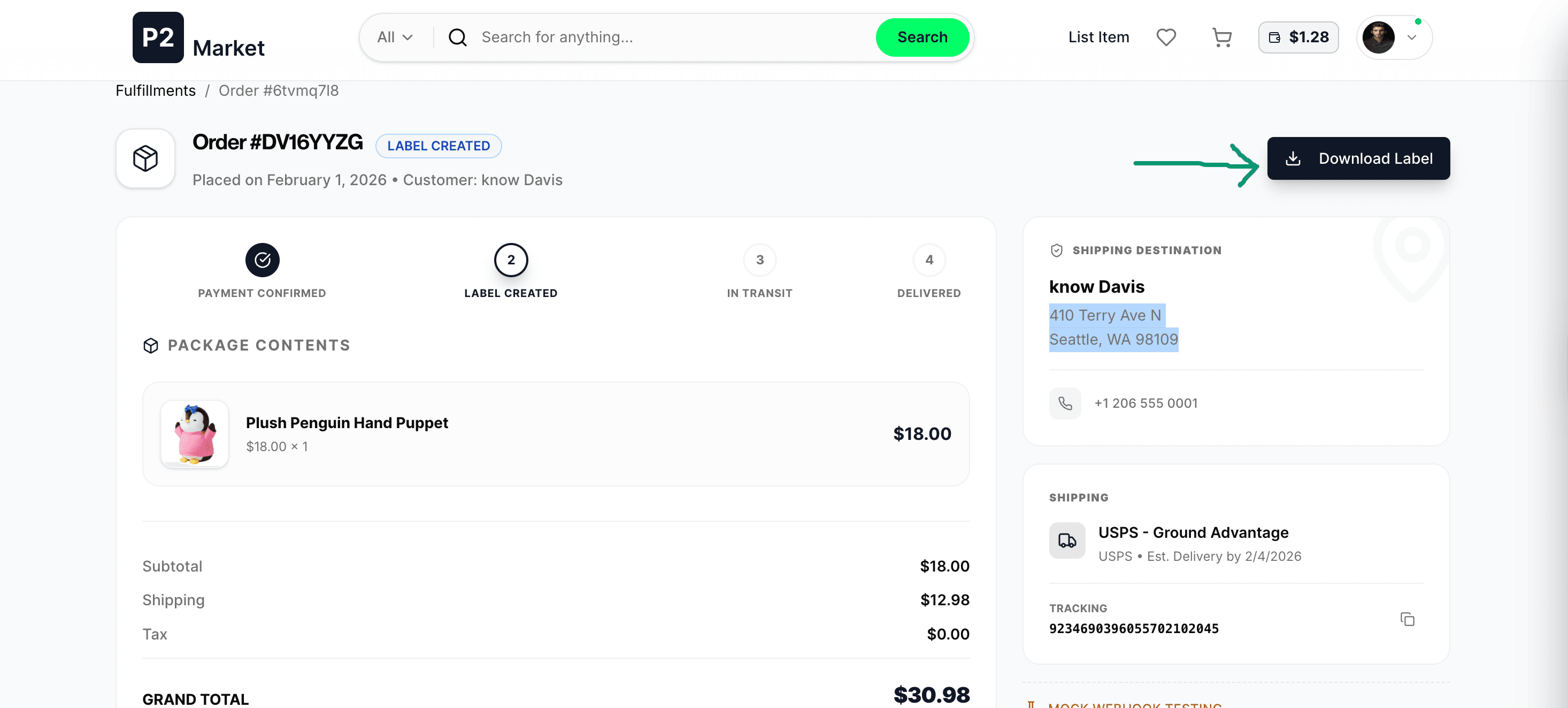
- Generate Label: Click the Generate Label button in your dashboard
- Print: Download the label and print it. If you don't have a label printer, regular paper and clear packing tape work—just ensure you don't tape over the barcode
3. Attach the Label
- Place the label on a flat surface of the package
- Avoid placing it over seams or edges where it might get cut or wrinkled
4. Hand Over the Package
- Schedule a Pickup: Most carriers (USPS, UPS, FedEx) allow you to schedule a free or low-cost pickup from your front door through their website
- Drop-off: Alternatively, you can drop the package at a local post office or designated drop box
Tracking and Payment
Stay Updated
Once you hand over the package to the courier, we will send you periodic email and push notifications regarding your shipment's status. You will be notified the moment your item is marked as Shipped and Delivered.
You can also click the View Tracking button once the package is in transit.
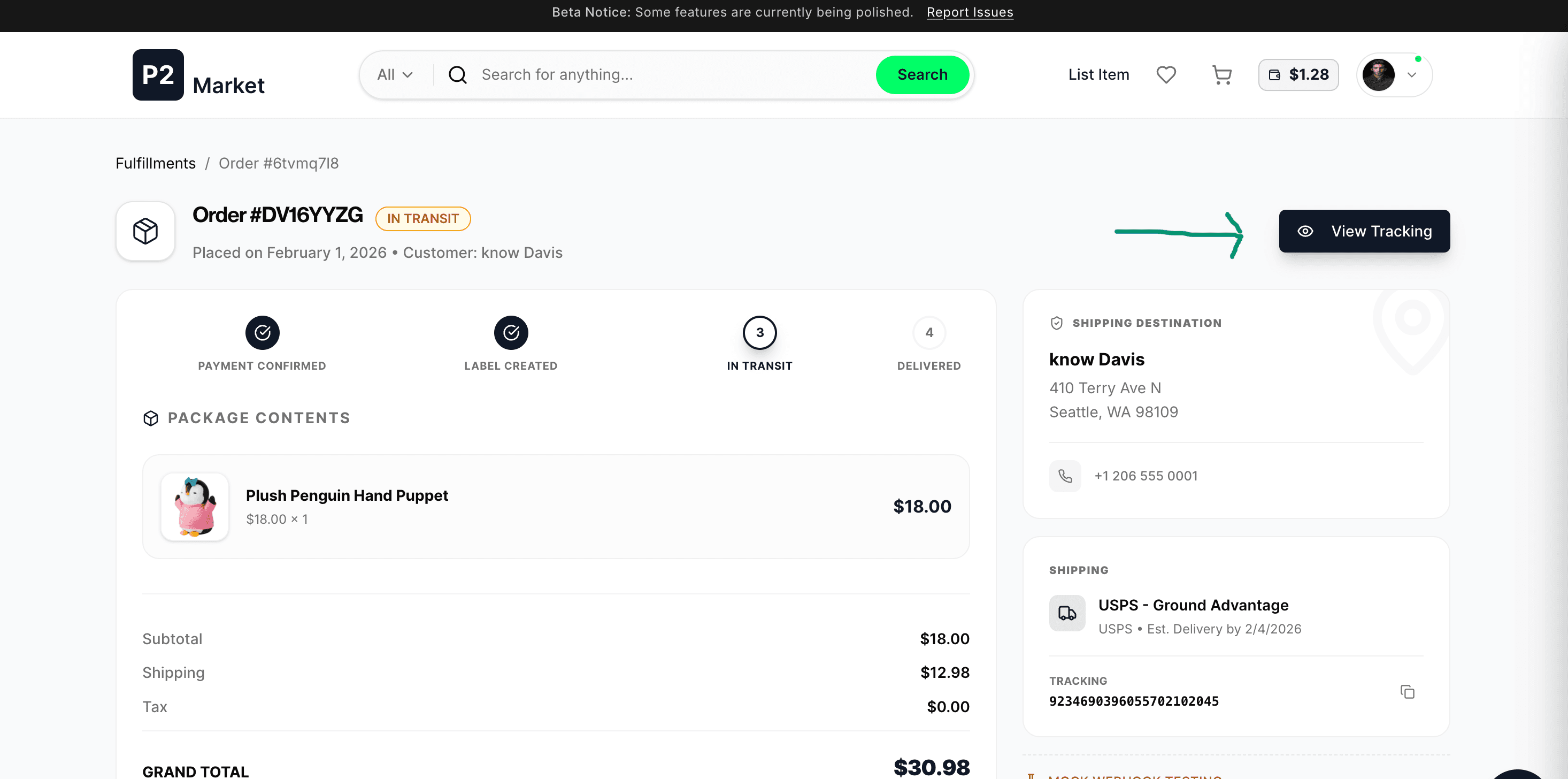
You will see the tracking details when you click the button:

Payment Release
Following a successful delivery, we typically hold the payment for 2 days to allow the buyer time to inspect the item and raise any disputes. If no dispute is raised within this window, we will automatically release the funds to your P2.Market wallet address and send you a final confirmation notification and email.